A New Partner Portal Experience

Partner Portal Updates
We are excited to introduce our new partner portal experience. When we redesigned it, we aimed to create an experience that helps our partners better serve their merchants. Everything you managed before is still here, with some additional features and a much improved user interface.
Changes at a glance:
- Onboarding - Create merchants and view their progress as they complete their merchant applications.
- User permissions - Create partner and merchant users and decide how much access they have to the portal’s features.
- Manage merchants inside the partner portal - Search any merchant, step into their account, and view or act on their behalf without signing out.
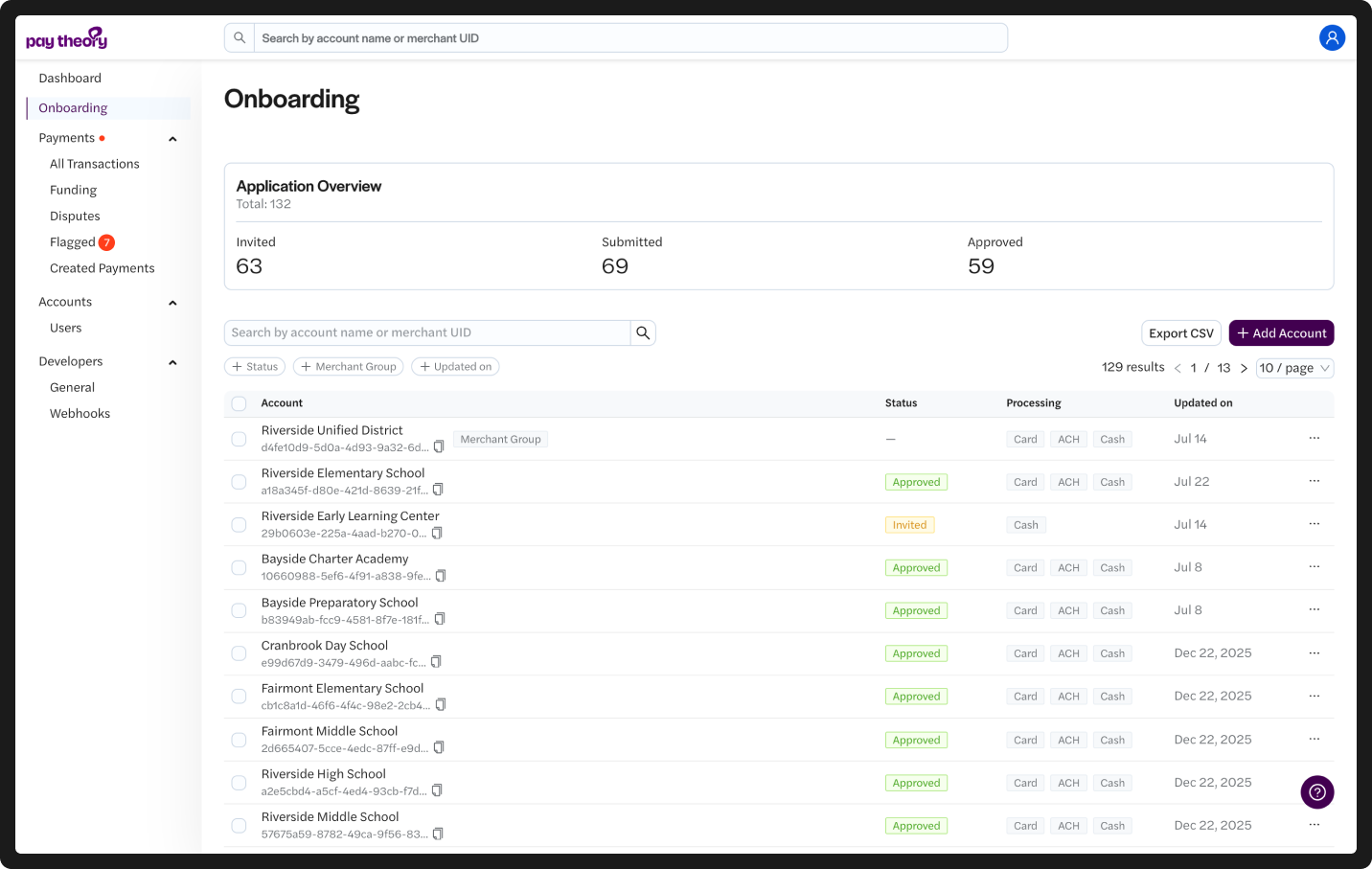
Manage Merchant Onboarding
Create new merchant accounts and track how merchants progress through onboarding.
Every merchant application is now available to you, including status, account name, enabled processing methods (Card, ACH, Cash), and more. Additionally, the onboarding application overview card counts how many sit in each status, so you can read the shape of your pipeline before you read a single row.
There are three statuses:
- Invited — the application link has been sent, and the merchant has not started.
- Submitted — the merchant has submitted,d and it is awaiting review.
- Approved — the merchant is active and can process.
Filter by status, merchant group, or when an application was last updated. Search by account name or merchant UID. If a merchant belongs to a group, the group name sits under the account name so you always know whose it is.
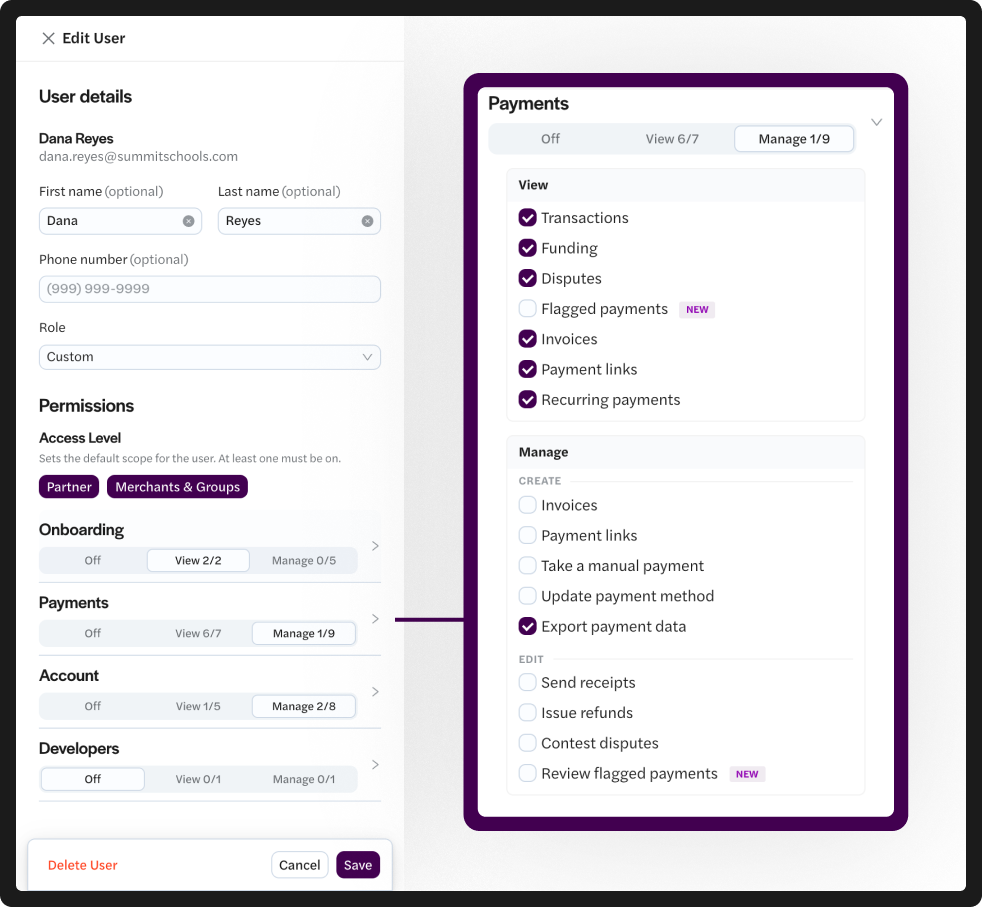
User Permissions
Adding a user is one screen. Enter their email, set what they can reach, and send the invitation. They set their own password from that email, so you never handle it.
Permissions are built in two layers, so you can move quickly without handing over more than you meant to.
The first layer is Access Level: does this person work at the partner level, on merchants and groups, or both? That sets the default scope for everything they can edit.
The second layer is the detail. Permissions are grouped into four areas — Onboarding, Payments, Account, and Developers — and each area can be set to Off, View, or Manage with a single control, or you can drill into specific permissions for more granular permissioning.
Two rules run underneath, so the settings you save are the settings you get:
- Some permissions are linked to one another. Adding and removing certain permissions will select or deselect other required permissions, simplifying the process.
- You cannot grant what you do not have. Permissions you do not hold yourself appear but stay locked, so no one on your team can hand out access above your own level.
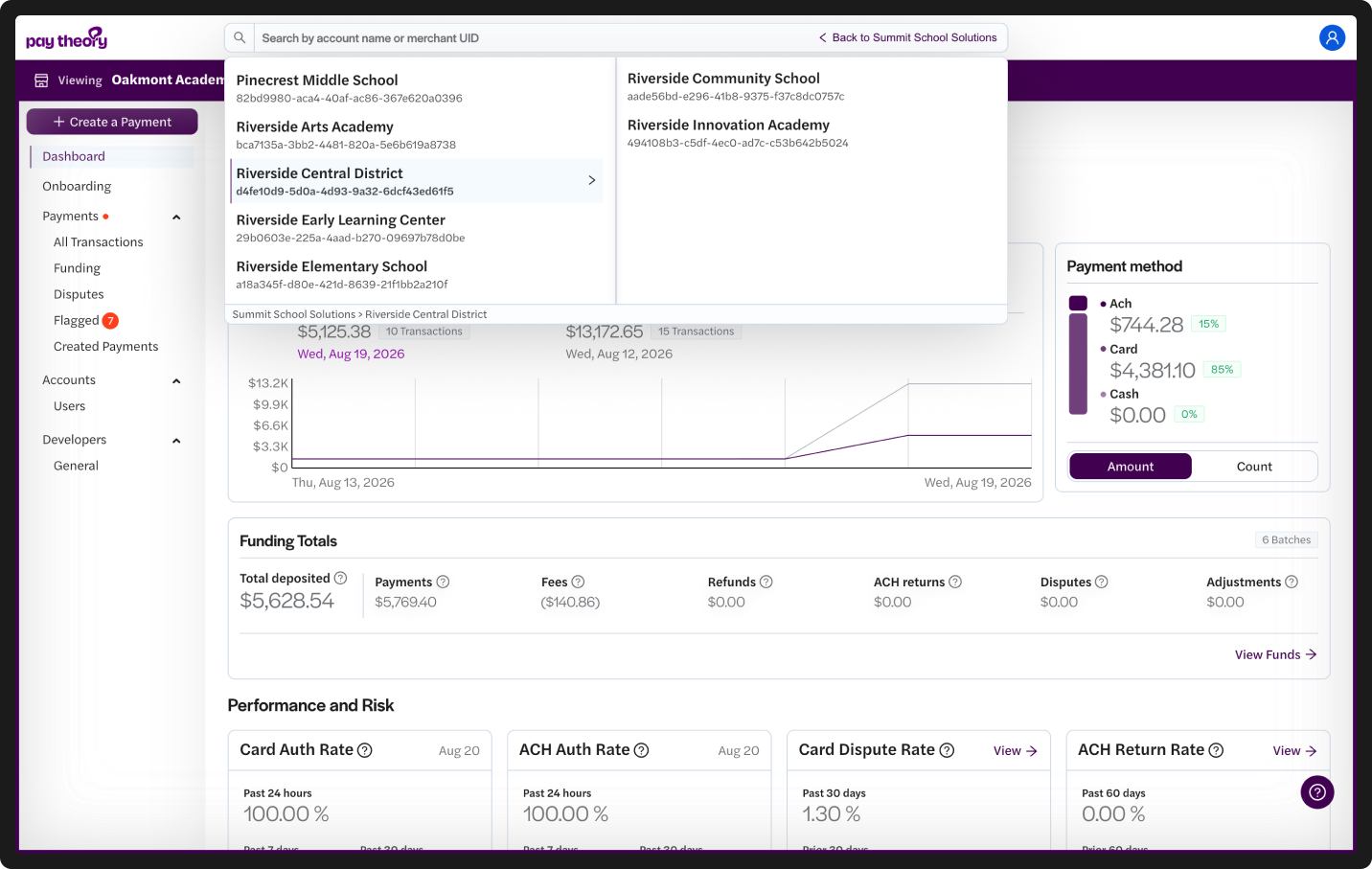
Manage Merchants Inside The Partner Portal
Every screen has an account search at the top. Type a merchant's name or UID, select them, and the portal switches into their account. Not a separate login and not a read-only preview. Additionally, you can switch between accounts without changing the page you are currently on. This allows you to switch accounts without losing context.
Additionally, acting on someone else's account should never be ambiguous; the portal makes it impossible to miss. A colored frame appears around the entire window in your brand color, with a band across the top and the account name that you are accessing.
What's Next
You can move to the new Partner Portal by clicking the banner in your current portal. During the overlap period, both versions will remain accessible, and changes made in either one will appear in the other. If you run into anything or have feedback, our team is available at support@paytheory.com


